Getting Started
This guide will help you create your first automated workflow in Farming Simulator 25.
Prerequisites
Before using Workflow Manager, ensure you have:
- Courseplay installed with at least one saved course
- AutoDrive installed and configured with at least one destination — optional, only needed for AutoDrive, Park, Refuel, and Repair steps
- A vehicle that supports Courseplay (and AutoDrive, if your workflow uses AutoDrive steps)
Keyboard Shortcuts
These shortcuts work both on foot and in a vehicle:
| Shortcut | Action |
|---|---|
| Left Alt + W | Open/close the Workflow Manager |
| Left Alt + H | Toggle the HUD overlay on/off |
Creating Your First Workflow
Step 1: Open the Workflow Manager
Press Left Alt + W to open the Workflow Manager.
The main dialog shows your list of workflows (empty at first).
Step 2: Create a New Workflow
- Click New
- Enter a name for your workflow (e.g., "Harvest Field 1")
- The workflow editor opens
Step 3: Add Steps
- Click + (Add Step) to create a new step
- Select the step type:
- AutoDrive - For navigation between locations (only offered when AutoDrive is installed)
- Courseplay - For field work
- Configure the step:
- For AutoDrive: Select a target destination and action (Drive To, Pickup and Deliver, etc.)
- For Courseplay: Select a saved course and action (Field Work, Bale Collect)
- Use the search box to quickly find destinations or courses
- Click OK to add the step
Step 4: Close the Editor
Close the editor when you're done adding steps. Your workflow is saved automatically.
Running a Workflow
Start the Workflow
- Get into a vehicle that supports Courseplay — and AutoDrive, if the workflow has AutoDrive steps
- Press Left Alt + W to open the Workflow Manager
- Select your workflow from the list
- Click Start (or press S)
The workflow begins executing step by step. The dialog closes and the HUD appears.
Monitor Progress
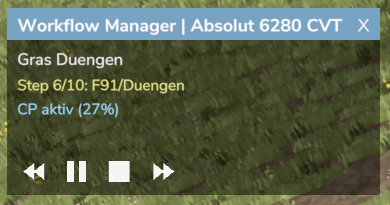
The in-vehicle HUD shows the current workflow status. Use the HUD buttons to:
- Pause/Resume the workflow
- Skip to next or previous step
- Stop the workflow
Resume After Save
If you save the game while a workflow is running, the vehicle's state is preserved automatically. When you reload, the workflow is restored as paused and continues on its own where possible — Courseplay field work restarts at the waypoint where it was saved, about 10 seconds after loading. If it stays paused, use the HUD Resume button to continue. See Resume After Save for the details.
Clicking Start in the main dialog always starts fresh from step 1.
Workflow Completion
When all steps complete the workflow is done. You can restart it from the beginning at any time by selecting it and clicking Start.
Example: Simple Harvest Workflow
Here's a practical example of a wheat harvest workflow:
| Step | Type | Target | Action |
|---|---|---|---|
| 1 | AutoDrive | Field 1 Entrance | Drive To |
| 2 | Courseplay | Wheat Harvest F1 | Field Work |
| 3 | AutoDrive | Farm Silo | Drive To |
This workflow:
- Drives the harvester to Field 1
- Runs the Courseplay course to harvest the field
- Returns to the farm silo
Next Steps
- Learn about Step Types for more automation options
- Explore the User Interface in detail
- Check Troubleshooting if you encounter issues