AD/CP Settings Dialog
Each workflow can store AutoDrive setting overrides that are applied to the vehicle automatically whenever the workflow starts — including when it auto-resumes after a save and reload.
Open it from the Main Dialog: select a workflow, then click AD/CP Settings.
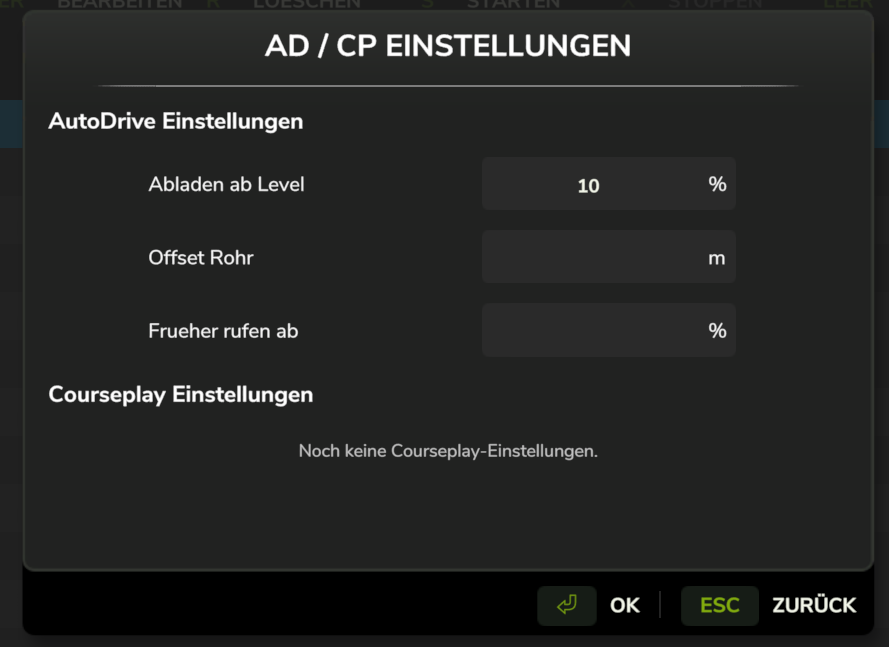
Settings
| Setting | Unit | Description |
|---|---|---|
| Unload Fill Level | % (0–100) | Minimum fill level before AutoDrive calls an unloader |
| Pipe Offset | meters | Horizontal pipe position offset for unloading |
| Pre-Call Level | % (0–100) | Fill level at which AutoDrive pre-calls the unloader so it arrives just in time |
Percentages are entered as whole numbers (80, not 0.8) and stored internally as fractions.
Pipe Offset is entered in meters and may be fractional.
Leave a field empty to leave that setting unchanged — the workflow uses whatever value is already configured in AutoDrive for that vehicle. An empty field is not the same as zero.
Buttons
| Button | Effect |
|---|---|
| OK | Stores the values in the workflow definition |
| Cancel / Esc | Closes without changing anything |
Any field that isn't a valid number is treated as empty, so a typo silently leaves that setting untouched rather than writing a bad value.
How the overrides are applied
Settings are stored inside the workflow definition, so they travel with the workflow and persist across sessions. They are re-applied each time the workflow starts a new AutoDrive step — not just once at workflow start — so AutoDrive's own route-start logic cannot overwrite them partway through a run.
Because the settings live on the workflow rather than the vehicle, the same vehicle can run two workflows with different unload behavior without any manual reconfiguration between them.