Editor Dialog
The Editor Dialog is where you build and modify workflow steps.
Accessing the Editor
- Click New in the Main Dialog to create a new workflow
- Click Edit or double-click a workflow to edit existing
Interface Overview
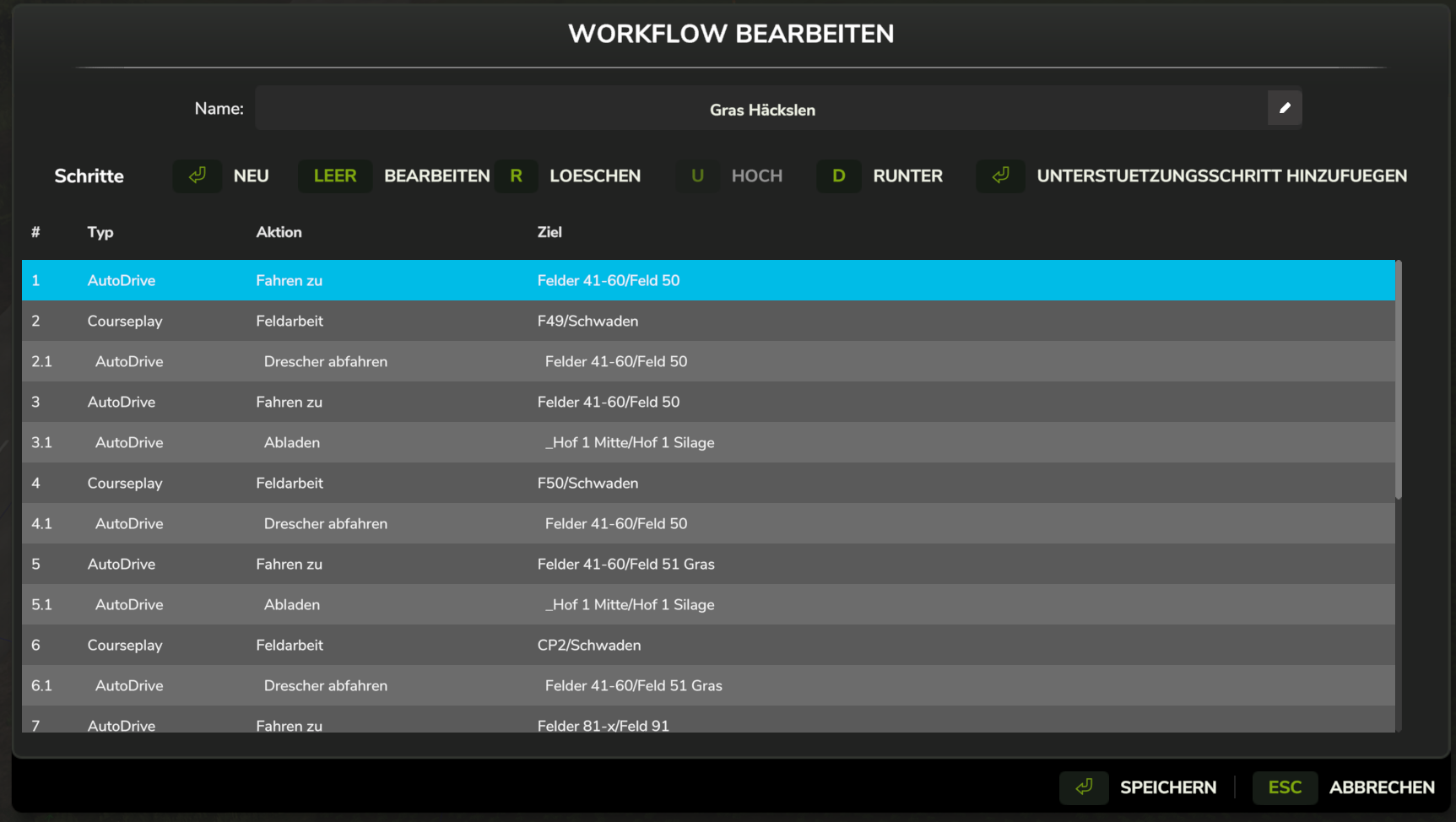
Step List
The step list shows main steps and their support sub-steps in a single nested list. Main steps are numbered starting at 1. Support sub-steps appear indented directly below their parent step, numbered N.M — where N is the parent step number and M is the sub-step's position within that step.
| Column | Description |
|---|---|
| # | Step number (1, 2, …) or sub-step number (2.1, 2.2, …) |
| Type | The step type — AutoDrive, Courseplay, a queue marker, or Park / Refuel / Repair |
| Target | Destination name or course name (empty for targetless types) |
| Action | The action to perform |
| Sup | Shows +N on main step rows that have N support sub-steps |
For AutoDrive steps with two destinations:
- Shows
Target → Unload Targetformat - Example:
Farm/Silo → Sell/Mill
Action Buttons
Add Step
Opens the Step Dialog to add a new main step:
- Click Add Step
- Configure the step (type, target, action)
- Click OK
- Step is added at the end of the list
Add Support Step
Adds a support sub-step to the currently selected main step:
- Select a main step row (numbered
1,2,3, …) - Click Add Support Step
- Configure the sub-step in the Step Dialog
- Click OK
The new sub-step appears indented below its parent, numbered N.M. The Add Support Step button is disabled when a support sub-step row is selected — select the parent main step first.
For more on support sub-steps and multi-vehicle setups, see Multi-Vehicle Workflows.
Edit
Modify the selected step or sub-step:
- Select a row from the list
- Click Edit (or double-click the row)
- Modify properties in the Step Dialog
- Click OK
Delete
Remove the selected step or sub-step:
- Select the row
- Click Delete
Deleting a main step also removes all of its support sub-steps.
Deleting a step automatically renumbers remaining steps.
Move Up (↑) / Move Down (↓)
Reorder steps:
- For main steps: swaps the step with the one above or below
- For support sub-steps: reorders within the parent main step's sub-step list
Disabled at the top/bottom of the respective list.
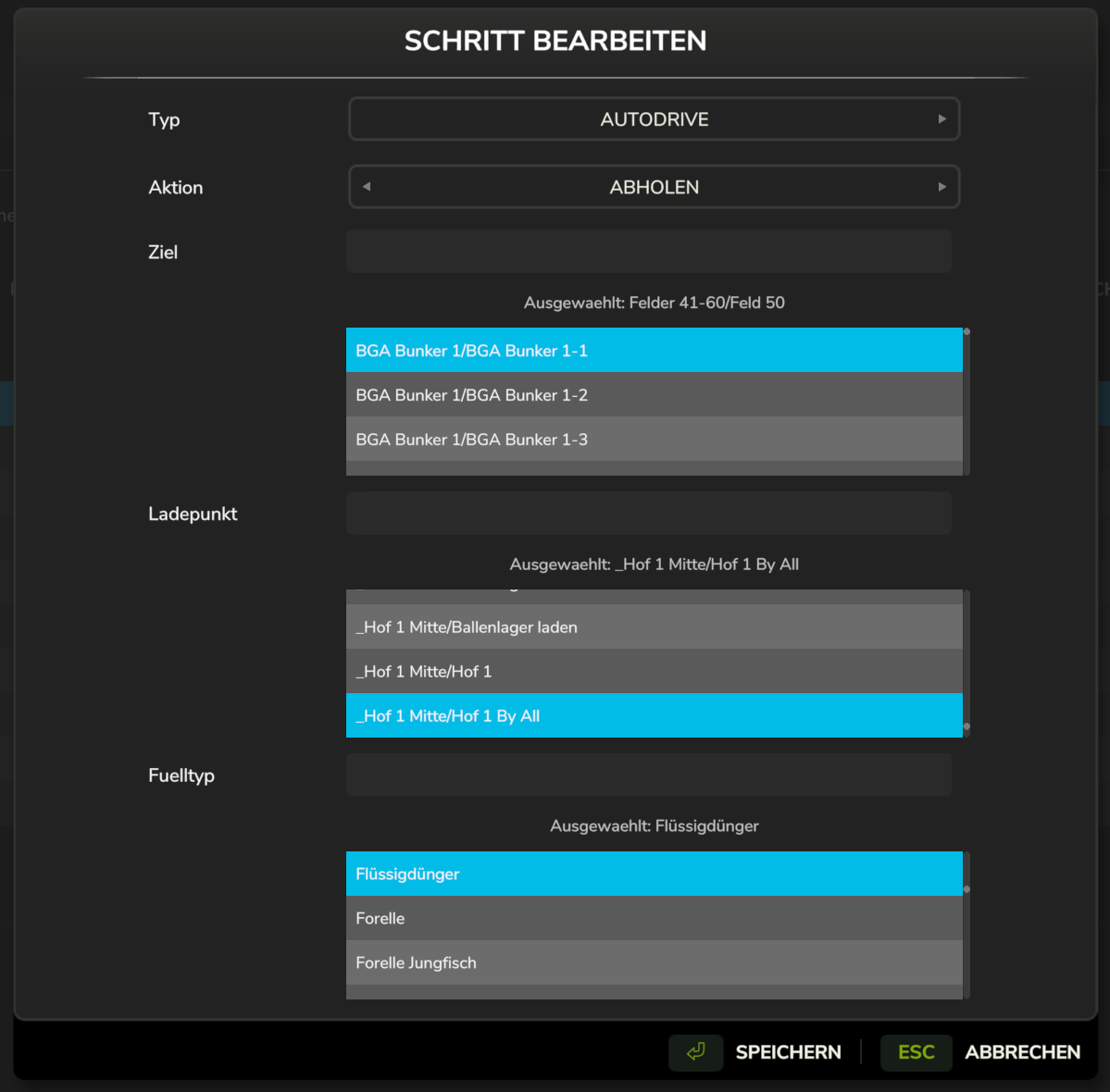
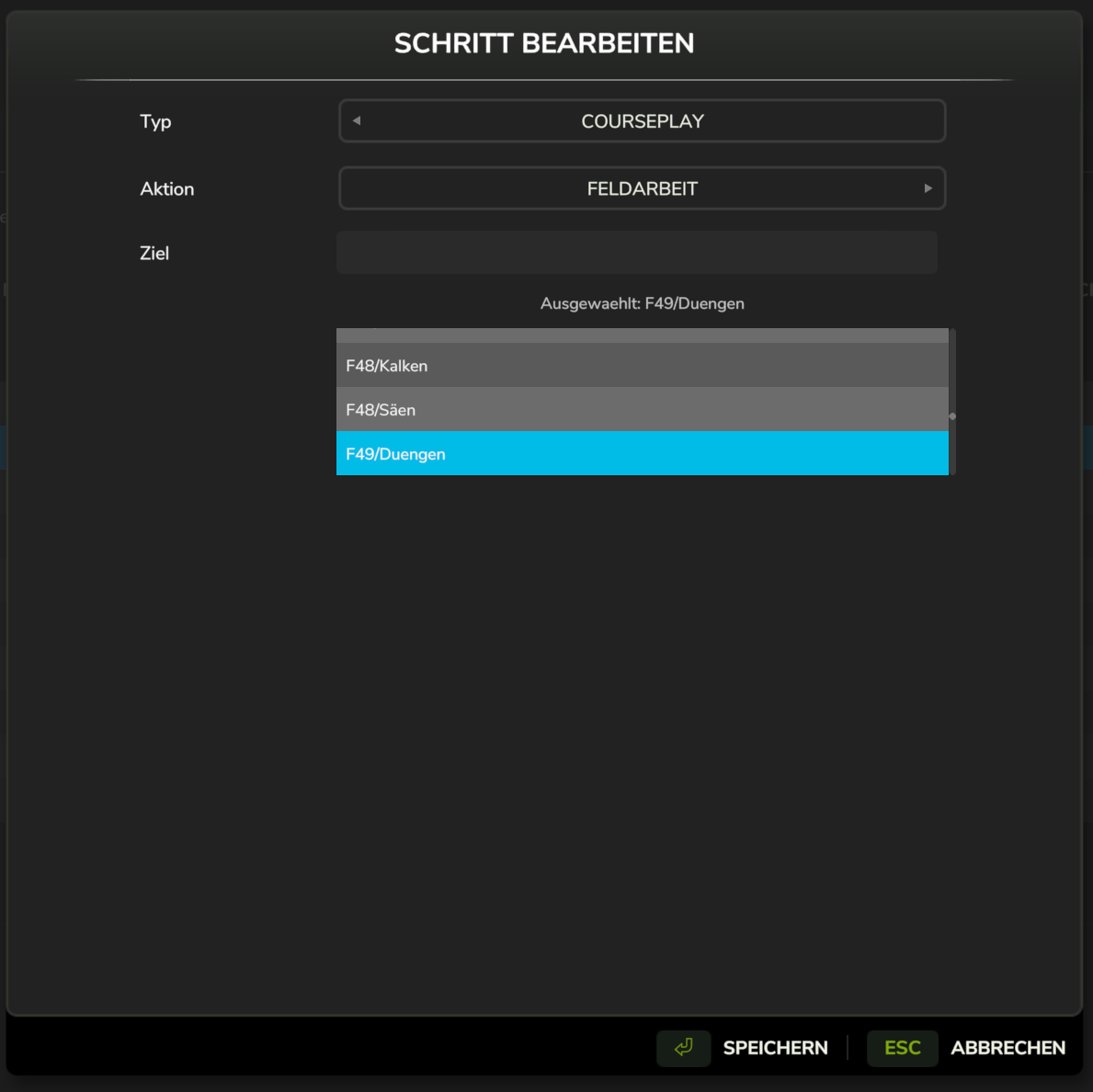
Step Dialog
Adding or editing a step opens the Step Dialog, which adapts its fields to the selected step type and action.
Keyboard Shortcuts
| Key | Action |
|---|---|
| N | Add step |
| T | Edit selected step |
| S | Add support step to the selected main step |
| R | Delete selected step |
| U | Move step up |
| D | Move step down |
Workflow Name
The editor has a Name field at the top — edit it directly to name or rename the workflow. The name is committed together with the rest of your changes when you click Save.
Saving
The editor works on a copy of the workflow, so nothing you do takes effect until you confirm:
| Button | Effect |
|---|---|
| Save | Commits every change — name, steps, and sub-steps — to the workflow, writes it to disk, and returns to the Main Dialog |
| Cancel | Discards the whole editing session. The workflow is left exactly as it was |
For a workflow created with New, this is what keeps the list clean: the workflow is only registered on Save, so cancelling leaves no empty entry behind.
:::warning Save is blocked while the workflow is running If the workflow you are editing is currently executing on a vehicle, Save refuses and shows the blinking warning "Cannot save: workflow is currently running. Stop it first." Stop the workflow, then save. Your edits stay in the dialog in the meantime — but leaving via Cancel discards them. :::
Best Practices
- Logical ordering: Place navigation steps before work steps
- Complete sequences: End with a step that returns the vehicle to a known location
- Test components: Verify AD routes and CP courses work before adding to workflow
- Use descriptive targets: Name your AD destinations and CP courses clearly
- Add support sub-steps to field work steps: Drive-to steps usually need no support activity — leave them empty so the support vehicle idles during transit