HUD Controls
The in-vehicle HUD provides workflow control without opening menus.
HUD Overview
When a workflow is running, an overlay appears on screen:
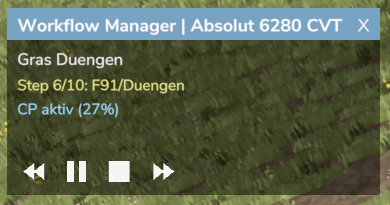
The Pause and Resume buttons share the same slot. The button shows || (Pause) while the workflow is running, and switches to ▶ (Resume) when the workflow is paused.
Hovering over any button shows a tooltip label: Previous Step, Pause, Resume, Stop, or Next Step.
Main Vehicle with Support Vehicles
If one or more support vehicles are following the same workflow, a colored badge appears next to the workflow name in the header:
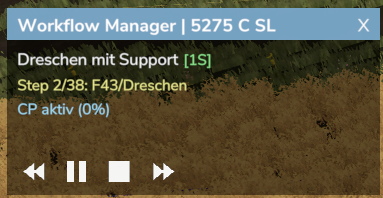
The [NS] badge shows the number of active support vehicles. Its color indicates their combined status: green (running), orange (paused), gray (idle/waiting).
Support Vehicle HUD
When running as a support vehicle, the HUD shows which main step is being followed and which sub-step is currently executing:
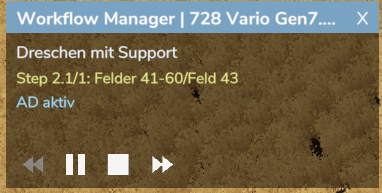
Step 2.1/2 means: the main vehicle is on step 2, and the support vehicle is executing sub-step 1 of 2 sub-steps for that main step. When the support vehicle finishes all sub-steps it waits until the main advances.
HUD Position
The HUD can be freely repositioned by dragging:
- Click and drag the header to move the HUD anywhere on screen
- Position is clamped to screen bounds so it won't go off-screen
- The header changes color while dragging for visual feedback
- Default position: lower-left area
Status Display
Header / Workflow Name
The header shows just WorkflowManager — the controlled vehicle is already obvious from being in the seat. The line below shows the workflow name, including the support badge if support vehicles are active.
Step Counter
Shows current step and total steps (e.g., Step 2/5). For support vehicles, shows the sub-step counter (e.g., Step 2.1/2).
Step Target
Displays a compact type tag ahead of the target destination or course name, e.g. [AD] Field1_Harvest, [CP] Field1_Wheat_Harvest, [PARK], [REFUEL], [REPAIR]. Marker steps (Wait for Leader, Unlock Follower) show [WM].
Waiting for Leader / Waiting for Main
When the vehicle is parked at a Wait for Leader step, or is a support vehicle that has finished its sub-steps, the status line reads Waiting for leader or Waiting for main vehicle followed by that vehicle's name. The name is clickable — click it to jump straight into that vehicle (same as AutoDrive's and Courseplay's own "switch vehicle" links).
Control Buttons
Previous Step (<<)
Function: Jump to the previous step
When to use:
- Repeat a step that didn't complete correctly
- Go back after accidentally skipping
Behavior:
- Stops current step
- Moves to previous step
- Starts that step
Disabled when: On step 1 (no previous step)
Pause / Resume (|| / ▶)
Function: Toggle workflow pause state. The button shows Pause (||) while running and switches to Resume (▶) when paused — only one is visible at a time.
Pause (||) — shown while the workflow is running:
- Suspends the current step
- AutoDrive pauses navigation
- Courseplay pauses field work
- Support vehicles continue running independently
Resume (▶) — shown while the workflow is paused:
- Continues from where it stopped
When to use:
- Need to make manual adjustments
- Temporary stop without resetting
Stop (□)
Function: Completely stop the workflow
Behavior:
- Stops current step
- Resets workflow to step 1
- Sets status to Ready
- Stops any running AD/CP jobs
- Support vehicles continue running independently
When to use:
- Abort the workflow
- Something went wrong
- Want to restart from beginning
Next Step (>>)
Function: Skip to the next step
When to use:
- Current step is stuck
- Want to skip a step manually
- Testing workflow progression
Behavior:
- Stops current step
- Moves to next step
- Starts that step
Disabled when: On last step (no next step)
Button States
Visual Feedback
| State | Color | Description |
|---|---|---|
| Normal | White | Default state |
| Hover | Cyan | Mouse is over button |
| Active | Green | Currently active (e.g., running) |
| Disabled | Gray | Action not available |
Interaction
Mouse Control
- Move mouse over buttons to see hover effect
- Click to activate the button
Mouse Cursor Handling
The HUD turns the mouse cursor on while it's the surface you're interacting with, and hands it back to the game when it's done. It only ever switches off a cursor it turned on itself, so a cursor that Workflow Manager didn't request — one belonging to AutoDrive, Courseplay, or a game menu — is left alone.
This matters when dialogs are involved: opening the Workflow Manager dialogs, the Step Dialog, the leader selection dialog, and so on all take the cursor while they're open. Closing the last one returns the cursor to whatever state the HUD needs. If a workflow is started from a chain of dialogs, the cursor grant waits until that chain finishes closing rather than flickering on and off between dialogs.
If the cursor ever gets stuck on, toggling the HUD off and on with Left Alt + H resets it.
Toggle HUD
Press Left Alt + H to show or hide the HUD overlay.
When HUD Appears
The HUD is visible when:
- A workflow is running or paused
- You are in the vehicle that started the workflow
The HUD hides when:
- Workflow is stopped or completed
- You exit the vehicle
- Game menu is open
HUD Updates
The HUD updates in real-time:
- Step counter updates on step change
- Button states update on workflow state change
- Target info updates for each step
Customization
- Toggle the HUD with Left Alt + H
- Reposition the HUD by dragging the header to any location on screen
Troubleshooting
HUD Not Appearing
- Ensure a workflow is running
- Check you're in the correct vehicle
- Verify the workflow has steps
Buttons Not Responding
- Check button is not disabled (gray)
- Ensure mouse is clicking the button area
- Game may need focus
HUD Overlapping Other UI
- Drag the HUD to a different position by clicking and holding the header
- The F1 help menu is a known overlap — close it when using workflows