Main Dialog
The Main Dialog is the entry point for managing all your workflows.
Accessing the Dialog
- Press Left Alt + W from anywhere (on foot or in a vehicle)
Interface Overview
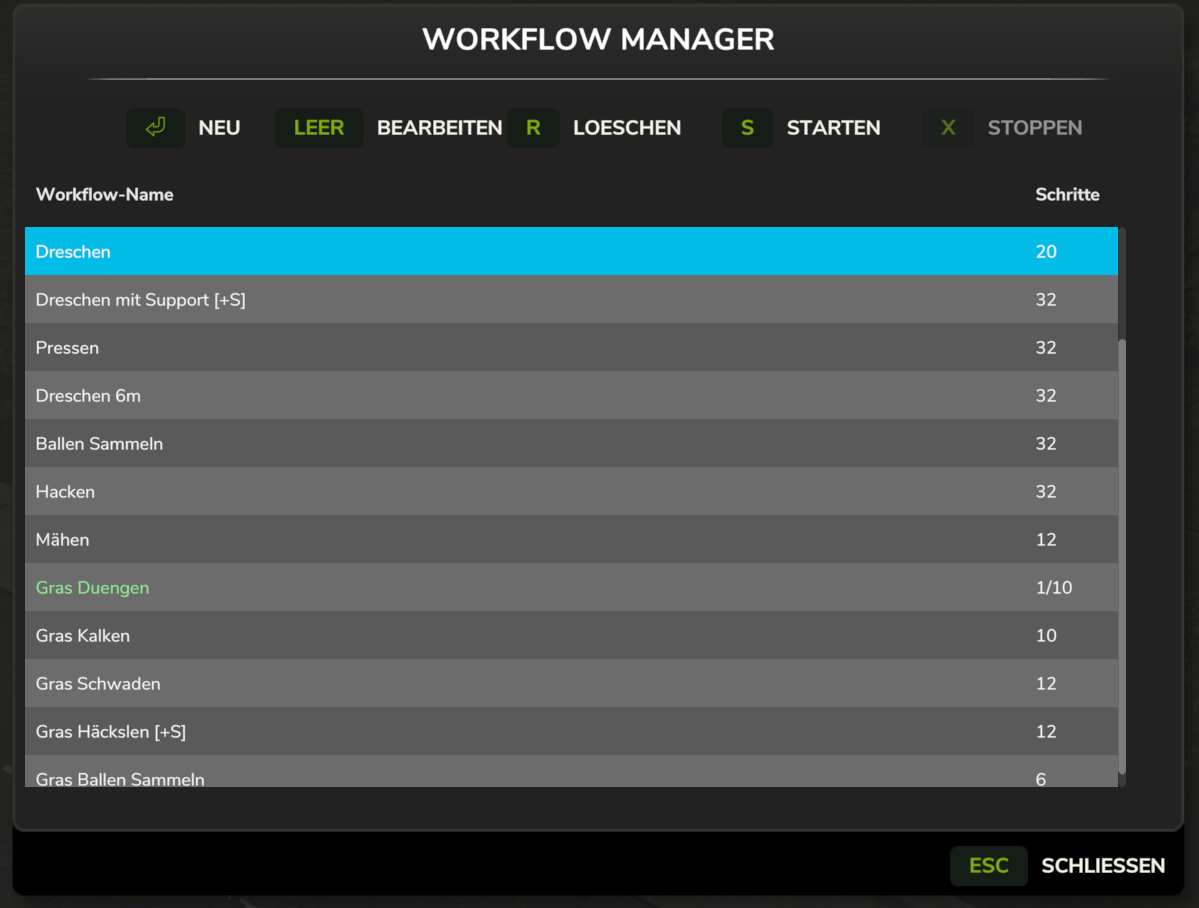
Workflow List
The main area displays all saved workflows with:
| Column | Description |
|---|---|
| Name | Workflow name — colored green (running), orange (paused), or white (idle) on the current vehicle |
| Steps | Total step count, or current/total progress (e.g., 2/6) while the workflow is active on the current vehicle |
Selection
- Single click: Select a workflow
- Double click: Open the workflow editor
Action Buttons
New Workflow
Creates a new workflow:
- Click New
- The Editor Dialog opens immediately with an empty workflow
- Set the name in the editor's Name field and add steps
- Click Save to commit it
The new workflow is only added to the list when you click Save — cancelling the editor leaves no empty entry behind.
Edit Workflow
Opens the selected workflow for editing:
- Select a workflow from the list
- Click Edit (or double-click the workflow)
- The Editor Dialog opens
Delete Workflow
Removes the selected workflow:
- Select a workflow from the list
- Click Delete
- Confirm the deletion
Deleted workflows cannot be recovered.
Start Workflow
Begins execution of the selected workflow:
- Ensure you are in a compatible vehicle
- Select a workflow
- Click Start
Requirements:
- Vehicle must support Courseplay — and AutoDrive, if the workflow contains AutoDrive, Park, Refuel, or Repair steps
- Workflow must have at least one step
- No other AD/CP job can be running
Stop Workflow
Stops a running workflow:
- Select the running workflow
- Click Stop
This resets the workflow to step 1 and sets status to "ready".
AD/CP Settings
Opens the AutoDrive settings override dialog for the selected workflow:
- Select a workflow from the list
- Click AD/CP Settings
- Adjust the values and click OK
These settings are applied automatically every time the workflow starts. See AD/CP Settings Dialog for the full field reference.
Close
Closes the dialog. Workflows are saved when the dialog closes.
Dialogs Opened on Start
Clicking Start can open one or two follow-up dialogs before the workflow actually begins:
| Dialog | Appears when |
|---|---|
| Mode Select | The workflow contains support sub-steps — choose Main or Support |
| Leader Vehicle Select | Other vehicles are already running workflows — choose a leader or none |
If neither condition applies, the workflow starts immediately with no prompt.
Keyboard Shortcuts
Global (work anywhere)
| Shortcut | Action |
|---|---|
| Left Alt + W | Open the Workflow Manager |
In the Dialog
| Key | Action |
|---|---|
| N | New workflow |
| T | Edit selected workflow |
| R | Delete selected workflow |
| S | Start selected workflow |
| K | Stop selected workflow |
| B | AD/CP Settings for the selected workflow |
| ↑ / ↓ | Navigate the workflow list |
| Double-click | Edit workflow |
Pause and resume are on the HUD. All keys can be rebound under Controls in the game settings — a binding saved there takes precedence over these defaults.
Resume After Save
If you save the game while a workflow is running, the vehicle's state is preserved automatically. When you reload, the workflow is restored as paused on the vehicle and continues on its own where possible — see Resume After Save. Anything still paused is resumed from the HUD.
Clicking Start in the main dialog always starts the workflow fresh from step 1.
Persistence
- Workflows are auto-saved when closing the dialog
- Changes are stored in
savegame[X]/workflowManager.xml - Workflows persist between game sessions