Step Dialog
The Step Dialog configures a single workflow step. It opens from the Editor Dialog via Add Step, Add Support Step, or Edit (or by double-clicking a step row).
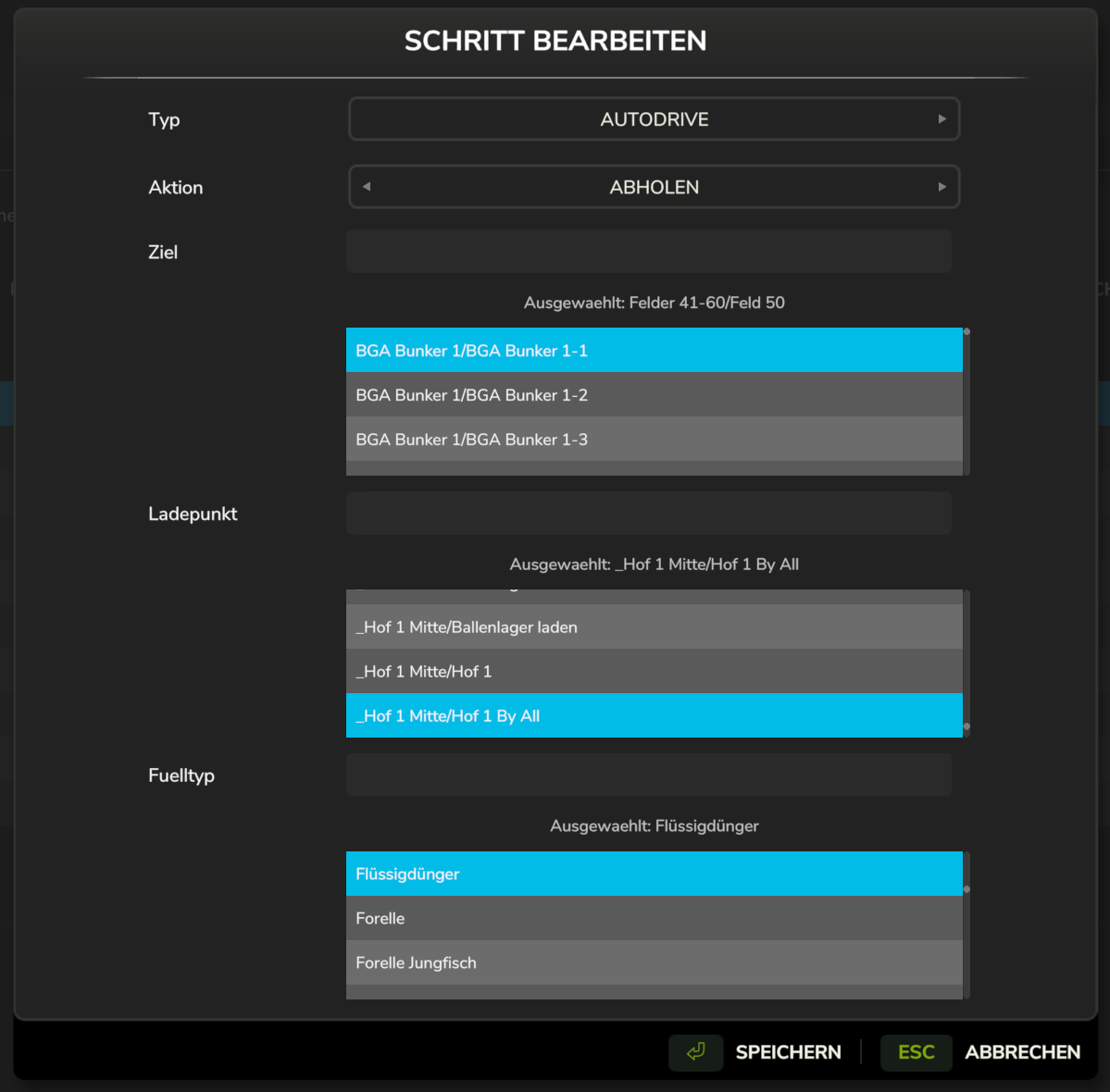
The dialog is adaptive: it only shows the fields the selected type and action actually need. Choosing a targetless type collapses it to a single dropdown.
Type
The Type dropdown selects what the step does. Up to seven types are available:
| Type | Shows target/action fields? |
|---|---|
| AutoDrive | Yes |
| Courseplay | Yes |
| Wait for Leader | No |
| Unlock Follower | No |
| Park | No |
| Refuel | No |
| Repair | No |
Changing the type rebuilds the Action dropdown and reveals or hides the rest of the form. See Step Types for what each type does at runtime.
:::note Support sub-steps When you open the dialog through Add Support Step, the two queue markers — Wait for Leader and Unlock Follower — are removed from the Type dropdown. Leader/follower pairing is built from main steps only.
The one exception: if you're editing a sub-step that is already a marker (saved before this restriction existed), both types stay listed so the dropdown reflects reality and lets you convert the step to something else. :::
:::note Without AutoDrive AutoDrive is optional. When it isn't installed, the four AutoDrive-driven types — AutoDrive, Park, Refuel, and Repair — are removed from the Type dropdown, and a new step starts as Courseplay / Field Work. A step that already has one of those types keeps it listed, so you can see what it is and convert it. :::
Action
The available actions depend on the type:
| Type | Actions |
|---|---|
| AutoDrive | Drive To, Pickup & Deliver, Deliver, Load, Unload |
| Courseplay | Field Work, Bale Collect |
The action drives which of the remaining fields appear:
| Action | Second target | Fill Type | Seed Type |
|---|---|---|---|
| Drive To, Deliver | — | — | — |
| Unload | Deliver To | — | — |
| Pickup & Deliver | Deliver To | Yes | — |
| Load | Load Point | Yes | — |
| Field Work | — | — | Yes |
| Bale Collect | — | — | — |
The second target's label changes with the action — it reads Load Point for the Load action and Deliver To for everything else. Same field, different meaning, so read the label rather than relying on position.
Target
The Target list holds AutoDrive destinations or Courseplay courses, depending on the type.
- Type in the search box above the list to filter it as you type
- Click an entry to select it
- The current choice is shown in the Selected row beneath the list
Courseplay courses appear as folder-qualified paths (e.g. Singleplayer/F34/Kalken) so that
identically-named courses in different folders stay distinguishable — see
Course Selection.
Fill Type
Shown only for Pickup & Deliver and Load. It limits what the vehicle will pick up, which matters when several fill types are available at one location.
| Interaction | Result |
|---|---|
| Click an entry | Selects it, replacing any previous selection |
| Ctrl+Click an entry | Toggles it on or off, building a multi-type selection |
- Selected entries are marked with a green ✓
- The label below shows up to two names (
Selected: Wheat, Barley), or a count for larger selections (Selected: 3 selected) - Leave it empty to accept any fill type
Seed Type
Shown only for the Courseplay Field Work action. It selects the seed on the attached sowing machine just before Courseplay starts, so a workflow can sow a different crop on each field.
- None (the default) leaves whatever seed the machine already has
- The seed is applied to every attached sowing machine that can sow it
- Setting it on a step is harmless when no sowing machine is attached — it is simply ignored
- The list holds every plantable fruit type on the current map, so it also covers crops added by mods
See Seed Type for what happens at runtime.
Confirming
| Button | Effect |
|---|---|
| OK | Validates and returns the step to the editor |
| Cancel / Esc | Discards the step; nothing is added or modified |
Validation is deliberately minimal:
- For AutoDrive and Courseplay steps, a target is required — clicking OK with no target selected does nothing at all. The dialog stays open with no error message, so if OK appears unresponsive, check that a target is selected.
- For the five targetless types, only the type is stored. Pick the type and click OK.
Second target, fill type and seed type are only saved when the chosen action actually uses them, so switching action after setting them discards the values that no longer apply.
OK returns the step to the editor's edit buffer — it does not write to disk. The workflow is only committed when you click Save in the Editor Dialog. Cancelling the editor discards every step change made in that session.