Creating Workflows
Workflows are the core concept of Workflow Manager. Each workflow is a sequence of steps that automate farm operations.
Workflow Structure
A workflow consists of:
- Name: A descriptive identifier (e.g., "Harvest Wheat Fields 1-3")
- Steps: Ordered list of AutoDrive routes and Courseplay courses
- Support sub-steps (optional): Helper actions nested inside main steps for multi-vehicle setups
Creating a New Workflow
From the Workflow Manager
- Press Left Alt + W to open the Workflow Manager
- Click New
- Enter a workflow name
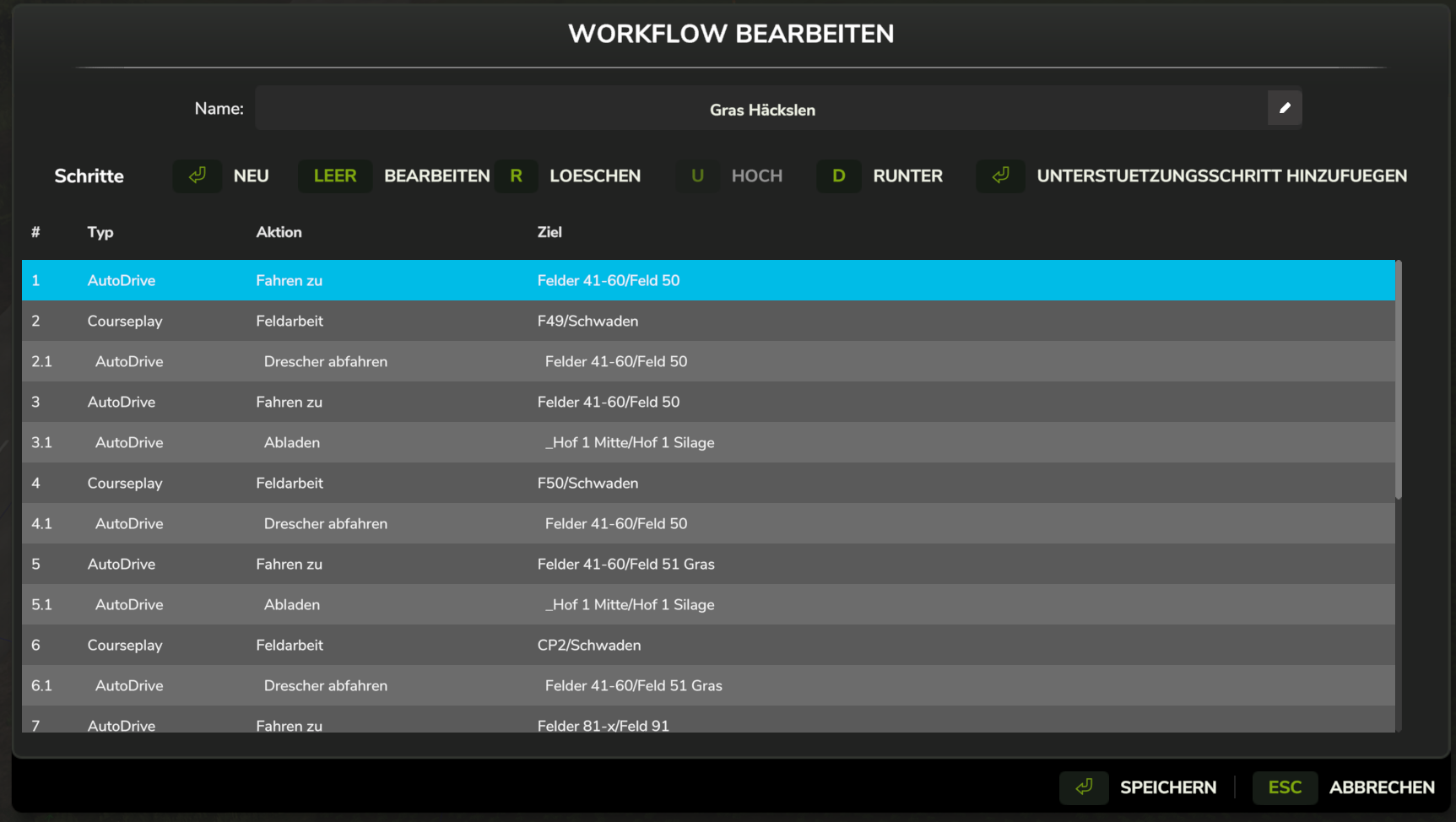
- The workflow editor opens
Naming Best Practices
Use descriptive names that help you identify the workflow:
- Include the crop type: "Harvest Wheat - North Fields"
- Include field numbers: "Fertilize Fields 1, 2, 3"
- Include the operation: "Baling - Grass Meadow"
- For multi-vehicle workflows, note that it requires a support vehicle: "Wheat Harvest (2-vehicle)"
Adding Steps
Steps are added in the workflow editor.
Step Types
| Type | Use For |
|---|---|
| AutoDrive | Navigation between locations, unloading, loading |
| Courseplay | Field work (harvesting, seeding, cultivating, baling) |
| Park / Refuel / Repair | AutoDrive utility stops with no target to configure — AD resolves the destination itself. See Step Types |
| Wait for Leader / Unlock Follower | Sync checkpoints for coordinating two vehicles via the queue system |
Adding an AutoDrive Step
- Click Add Step
- Select AutoDrive as the type
- Choose a Target destination from the dropdown
- Select an Action:
- Drive To — Simple navigation to target
- Unload Combine — Unload mode (for combines)
- Pickup and Deliver — Load at target, deliver to second location
- Deliver — Deliver current load to target
- Load — Load at target, return to second location
- For modes requiring two destinations, select Unload Target
- Optionally set Fill Type to filter cargo
- Click OK
Adding a Courseplay Step
- Click Add Step
- Select Courseplay as the type
- Choose a Course from the dropdown
- Select an Action:
- Field Work — Standard field operations
- Bale Collect — Collect and wrap bales
- Click OK
Adding Support Sub-Steps
Support sub-steps let a second vehicle (e.g., a grain cart) work alongside the main vehicle automatically. Each main step can have its own support sub-steps.
When to Add Support Sub-Steps
- Add them to field work steps where the support vehicle needs to act (e.g., unload the combine and deliver to silo)
- Leave drive-to steps without support sub-steps — the support vehicle will idle during transit
How to Add a Support Sub-Step
- In the editor, select a main step (numbered
1,2,3, …) - Click Add Support Step at the bottom of the editor
- Configure the sub-step in the Step Dialog (same fields as a regular step)
- Click OK
The sub-step appears indented below the main step, numbered N.M (e.g., 2.1, 2.2).
Repeat to add multiple sub-steps. They execute in order while the main vehicle stays on that step.
  #     Type        Target              Action
  ──────────────────────────────────────────────────
  1     AutoDrive   Field1_Entrance     Drive To
  2     Courseplay  Field1_Harvest      Field Work   +2
  2.1     AutoDrive   Field1            Unload Combine
  2.2     AutoDrive   Silo              Deliver
  3     AutoDrive   Field2_Entrance     Drive To
  4     Courseplay  Field2_Harvest      Field Work   +2
  4.1     AutoDrive   Field2            Unload Combine
  4.2     AutoDrive   Silo              Deliver
See Multi-Vehicle Workflows for full details on how the support vehicle behaves at runtime.
Editing Steps
Reordering Steps
- Select a step and use Move Up / Move Down buttons
- Or use keyboard shortcuts: U to move up, D to move down
- Support sub-steps are reordered within their parent step only
Modifying a Step
- Double-click the step or select and click Edit
- Modify the step properties
- Click OK to save
Deleting Steps
- Select the step
- Click Delete or press R
Deleting a main step also removes all of its support sub-steps.
Workflow Example
Here's a complete workflow for harvesting multiple fields:
Workflow: "Wheat Harvest - Fields 1 & 2"

Step 1: AutoDrive → Field1_Entrance          Drive To
Step 2: Courseplay → Field1_Wheat_Harvest     Field Work
Step 3: AutoDrive → Farm/Silo → Sell/Mill     Pickup and Deliver · Filter: Wheat
Step 4: AutoDrive → Field2_Entrance          Drive To
Step 5: Courseplay → Field2_Wheat_Harvest     Field Work
Step 6: AutoDrive → Farm/Silo                Drive To
Two-Vehicle Example (Combine + Unloader)
The same harvest workflow extended with support sub-steps for an unloader:
Workflow: "Wheat Harvest - Fields 1 & 2 (2-vehicle)"

Step 1: AutoDrive → Field1_Entrance          Drive To
  (no support sub-steps — unloader idles during transit)

Step 2: Courseplay → Field1_Wheat_Harvest     Field Work
  2.1: AutoDrive → Field1                    Unload Combine → Silo
  2.2: AutoDrive → Silo                      Deliver

Step 3: AutoDrive → Field2_Entrance          Drive To
  (no support sub-steps)

Step 4: Courseplay → Field2_Wheat_Harvest     Field Work
  4.1: AutoDrive → Field2                    Unload Combine → Silo
  4.2: AutoDrive → Silo                      Deliver
Per-Workflow AutoDrive Settings
Each workflow can store AutoDrive overrides that apply automatically on every start. This is useful when different workflows require different unload thresholds or pipe positions without you having to reconfigure AutoDrive manually each time.
Access the settings from the main dialog:
- Select a workflow
- Click AD/CP Settings
- Fill in any values you want to override and click OK
| Field | Description |
|---|---|
| Unload Fill Level (%) | Minimum fill % before the unloader is called |
| Pipe Offset (m) | Horizontal pipe position override |
| Pre-Call Level (%) | Fill % at which AutoDrive pre-calls the unloader |
Leave any field empty to keep AutoDrive's existing value for that setting. Settings are applied every time the workflow starts an AutoDrive step.
Saving Workflows
Workflows are saved automatically when you:
- Close the editor dialog
- Exit the Workflow Manager
- Save the game
Workflows persist in your savegame folder in workflowManager.xml.
Copying Workflows
Currently, workflows cannot be directly copied. To create a similar workflow:
- Create a new workflow
- Add the same steps manually
:::tip Future Feature Workflow copying/templating is planned for a future update. :::
Best Practices
- Test individual components first: Ensure your AutoDrive routes and Courseplay courses work independently
- Start simple: Begin with 2-3 step workflows before creating complex sequences
- Use descriptive names: Makes managing multiple workflows easier
- Group by operation: Create separate workflows for different crop types or operations
- Consider vehicle requirements: Ensure your vehicle supports all steps in the workflow
- Leave drive steps without support sub-steps: Support vehicles idle during transit — no configuration needed