Executing Workflows
This guide covers how to run, monitor, and control workflows during execution.
Starting a Workflow
Requirements
Before starting a workflow:
- Enter a compatible vehicle (must support Courseplay — and AutoDrive, if the workflow contains AutoDrive, Park, Refuel, or Repair steps)
- Ensure required implements are attached
- The vehicle should not have another AD or CP job running
Starting from the GUI
- Press Left Alt + W to open the Workflow Manager
- Select a workflow from the list
- Click Start (or press S)
Workflows without support sub-steps start immediately and the dialog closes.
Role Selection (Multi-Vehicle Workflows)
If the workflow contains support sub-steps, a Role Selection dialog appears before starting:
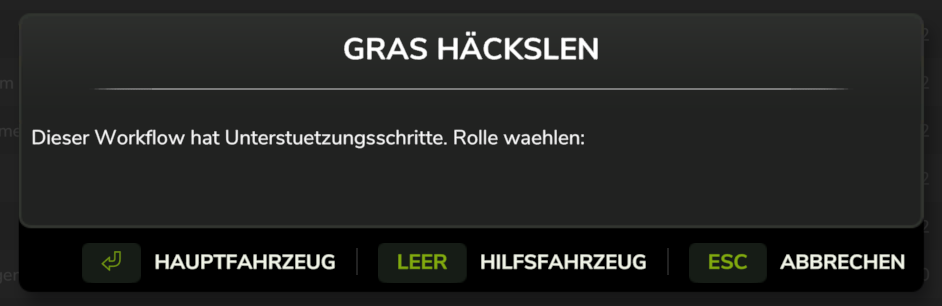
- Run as Main Vehicle — this vehicle leads the workflow. It executes the main steps in order.
- Run as Support Vehicle — this vehicle is a helper. It executes the support sub-steps for whichever main step the lead vehicle is currently on.
To run a two-vehicle setup:
- Enter the main vehicle (e.g., combine) → open Workflow Manager → Start → Run as Main Vehicle
- Enter the support vehicle (e.g., unloader) → open Workflow Manager → Start → Run as Support Vehicle
Both vehicles use the same workflow. The main dialog shows [+S] next to workflows that have support sub-steps.
See Multi-Vehicle Workflows for full details.
Workflow Status
Workflows have four possible states:
| Status | Description |
|---|---|
| Ready | Workflow is configured and ready to start |
| Running | Workflow is actively executing |
| Paused | Workflow is paused, waiting for resume |
| Completed | All steps have finished |
In-Vehicle HUD
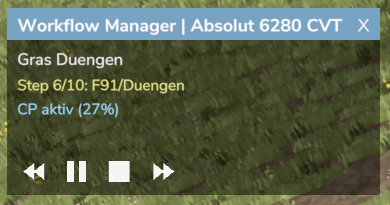
When a workflow is running, an HUD overlay appears showing:
- Current workflow name
- Current step (e.g., "Step 2/5")
- Step details (type, target, action)
- Control buttons
For support vehicles the step counter shows the sub-step position, e.g. Step 2.1/2 (main is on step 2, support is executing sub-step 1 of 2).
HUD Controls
| Button | Icon | Function |
|---|---|---|
| Previous | << | Jump to previous step |
| Pause | ` | |
| Resume | > | Resume a paused workflow |
| Stop | □ | Stop and reset the workflow |
| Next | >> | Skip to next step |
Button Colors
- White: Normal state
- Cyan: Mouse hovering
- Green: Active (e.g., play when running)
- Gray: Disabled
Controlling Execution
Pausing
Pause a workflow to:
- Temporarily stop automation
- Make manual adjustments
- Handle unexpected situations
When paused:
- The current step remains active but suspended
- AutoDrive pauses navigation
- Courseplay pauses field work
- If paused from the main vehicle, all active support vehicles pause too
Resuming
Resume a paused workflow:
- Click the Resume (play) button on the HUD
- Execution continues from where it stopped
Skipping Steps
Use Previous/Next to manually navigate:
- Next: Skip to the next step (useful if current step is stuck)
- Previous: Go back to repeat a step
Skipping steps may leave the vehicle in an unexpected position. Use carefully.
Stopping
Stop a workflow completely:
- Resets the workflow to step 1
- Sets status back to Ready
- Stops any running AutoDrive or Courseplay jobs
- Stopping the main vehicle also stops all active support vehicles
Step Completion
AutoDrive Step Completion
An AutoDrive step completes when:
- The vehicle reaches the destination
- The unload/load operation finishes (for cargo modes)
Courseplay Step Completion
A Courseplay step completes when the field work course finishes.
Support Sub-Step Sequencing
When running as a support vehicle:
- Execute sub-step 1 for the current main step
- Execute sub-step 2 … continue through all sub-steps
- After the last sub-step — wait for the main vehicle to advance
- When the main advances, immediately start sub-step 1 of the new step
If the main vehicle advances to a step that has no support sub-steps, the support vehicle idles until the main moves on again.
Cyclic Operations
Some harvest setups involve a harvester that calls a grain cart or unloader via AutoDrive to deliver grain, then resumes harvesting. Workflow Manager handles this automatically — it waits for both AutoDrive and Courseplay to be fully finished before advancing to the next step. You don't need to set this up specially.
Error Handling
Step Fails to Start
If a step cannot start:
- An error message appears in the HUD
- The workflow pauses
- Fix the issue and resume
Common causes:
- Missing destination/course
- Vehicle not compatible
- Another job already running
Vehicle Becomes Unavailable
If the vehicle is sold or reset during execution:
- The workflow stops automatically
- Status is set to Ready
- Start again with a new vehicle
Multiplayer Considerations
In multiplayer:
- Workflows execute on the server
- All players can see workflow status
- Only the controlling player can modify execution
Resume After Save
If you save the game while a workflow is running, the vehicle's state is preserved automatically — the current step, the role (Main or Support), and the current sub-step. Clicking Start in the main dialog always starts the workflow fresh from step 1.
When you reload, the workflow is restored as paused, and for the first 10 seconds Workflow Manager watches the vehicle:
| Situation | What happens after loading |
|---|---|
| AutoDrive or Courseplay starts driving again on its own within the 10 seconds | The workflow resumes automatically |
| The vehicle was doing Courseplay field work when the game was saved | After the 10 seconds, Workflow Manager restarts Courseplay at the waypoint where the game was saved |
| Anything else | The workflow stays paused — press the HUD Resume button (>) to continue |
Vehicles that were waiting for a leader or for their main vehicle are restored in that waiting state instead, and continue as soon as the condition is met.
Resume Courseplay after loading
Courseplay never restarts on its own after a savegame load, and a plain restart would begin the field again at waypoint 1. Workflow Manager therefore records the waypoint when the game is saved and restarts from there. The automatic restart can be switched off under ESC → Settings → General, in the Workflow Manager section:
| Setting | Default | Effect |
|---|---|---|
| Resume Courseplay after loading | On | Off = the workflow stays paused after loading; pressing Resume still restarts the field work at the saved waypoint |
The setting is stored per savegame. In multiplayer the host's value applies, and the option is read-only for other players.
If no waypoint could be recorded when the game was saved, the workflow stays paused — neither the automatic restart nor Resume will re-drive the whole field from the start. Use the HUD Next / Previous buttons to move on.
Performance
Workflows are monitored via the game's update loop:
- Minimal performance impact
- Status checks every 500ms when running
- No polling when idle
Best Practices
- Test before running: Verify AD routes and CP courses work independently
- Start with simple workflows: Begin with 2-3 steps
- Monitor first runs: Watch the first execution to catch issues
- Use pause for adjustments: Pause if you need to intervene
- Check vehicle position: Ensure the vehicle is appropriately positioned before starting
- Start main vehicle first: For multi-vehicle setups, start the main vehicle before the support vehicle so the support can join at the correct step