Multi-Vehicle Workflows
Workflow Manager lets a single workflow coordinate multiple vehicles working together — for example, a combine harvester and an unloader running in sync across multiple fields — using support sub-steps nested directly inside main steps.
How It Works
Each main step in a workflow can contain one or more support sub-steps. When you start a workflow that has support sub-steps, you choose a role:
| Role | Description |
|---|---|
| Main | The lead vehicle. Executes the main steps in order. |
| Support | The helper vehicle. Executes the sub-steps of whichever main step the main vehicle is currently on. |
The support vehicle works through its sub-steps in order, then enters Waiting for Main status until the main vehicle advances to the next step. The HUD shows the main vehicle's name during this wait — click it to jump straight into the main vehicle. When the main moves on, the support immediately starts the sub-steps for the new step.
Example — Combine + Unloader
Workflow: "Wheat Harvest – Fields 1 & 2"

Step 1: AutoDrive → Field1_Entrance    Drive To
  1.1 (support): AutoDrive → Silo      Deliver

Step 2: Courseplay → Field1_Harvest    Field Work
  2.1 (support): AutoDrive → Field1    Unload Combine → Silo
  2.2 (support): AutoDrive → Silo      Deliver

Step 3: AutoDrive → Field2_Entrance    Drive To
  3.1 (support): AutoDrive → Silo      Deliver

Step 4: Courseplay → Field2_Harvest    Field Work
  4.1 (support): AutoDrive → Field2    Unload Combine → Silo
  4.2 (support): AutoDrive → Silo      Deliver
Main vehicle (combine): drives to Field 1 → harvests → drives to Field 2 → harvests.
Support vehicle (unloader): while main is on step 2 (harvesting Field 1), the unloader executes sub-steps 2.1 then 2.2 (unload → deliver), then waits. When the main advances to step 3 (drive to Field 2), the support immediately executes sub-step 3.1, and so on.
Setting Up Support Steps
Step 1: Create the Workflow
Create a single workflow with all the main steps in sequence. See Creating Workflows for details.
Step 2: Add Support Sub-Steps
- Open the Workflow Manager and open the workflow in the Editor
- Select a main step from the list
- Click Add Support Step at the bottom of the editor
- Configure the support sub-step (type, target, action) in the Step Dialog
- Click OK
The new sub-step appears indented below the main step in the list, numbered N.M (e.g., 2.1, 2.2).
Repeat for each main step that needs support activity. Steps with no support sub-steps (e.g., drive-to steps where the support just waits) can be left empty.
Step 3: Start with Role Selection
When you start a workflow that has support sub-steps, a Role Selection dialog appears:
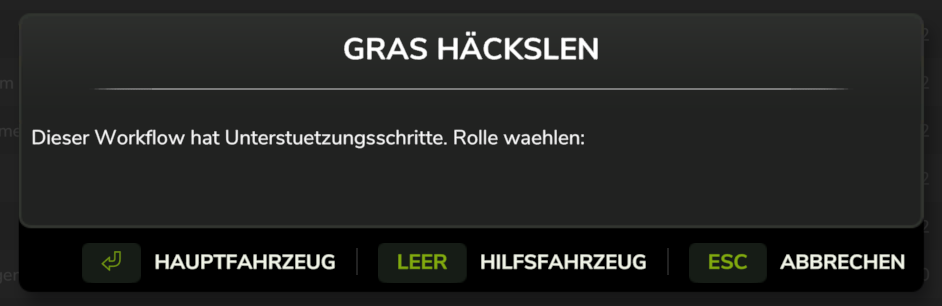
- Enter the combine → open Workflow Manager → select the workflow → click Start → choose Run as Main Vehicle
- Enter the unloader → open Workflow Manager → select the same workflow → click Start → choose Run as Support Vehicle
Workflows without any support sub-steps start immediately without showing the role dialog.
Editing Support Sub-Steps
The editor shows main steps and their support sub-steps in a single nested list:
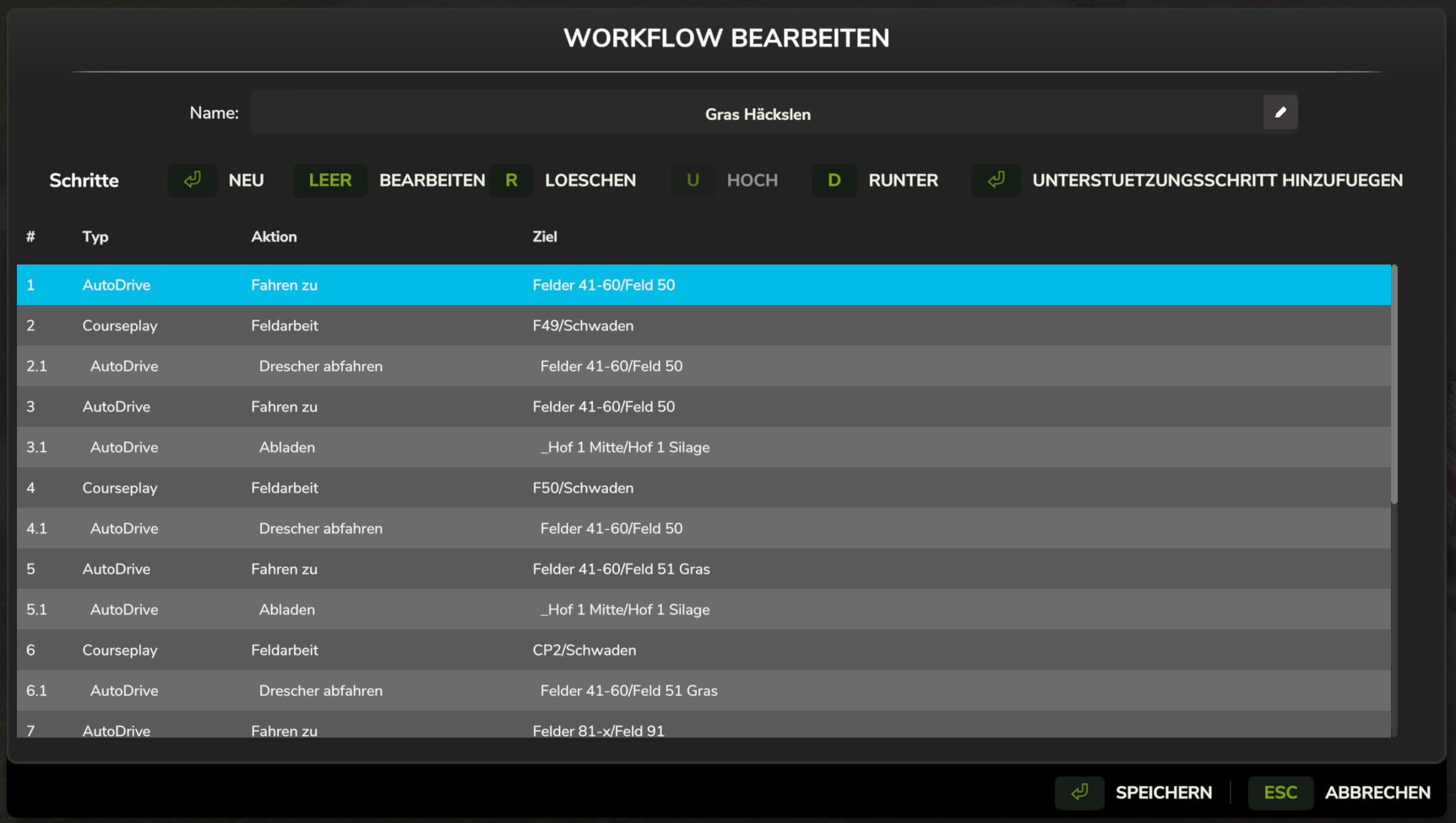
- Select any row (main or support sub-step) and click Edit to modify it
- Click Delete to remove the selected row (main step or sub-step)
- Move Up / Move Down reorders main steps or reorders support sub-steps within their parent step
- The Sup column on main step rows shows
+Nwhere N is the number of sub-steps
Runtime Behavior
Support Step Sequencing
The support vehicle executes sub-steps for the current main step one at a time:
- Execute sub-step 1
- Execute sub-step 2
- … (continue through all sub-steps)
- Finished all sub-steps → status becomes Waiting for Main
When the main vehicle moves to the next step, the support immediately starts sub-step 1 of the new step. If the new step has no support sub-steps, the support stays in Waiting for Main until the main advances again.
Pause / Resume / Stop Propagation
Support vehicles run independently — pausing or stopping the main vehicle does not affect them.
| Action on Main | Effect on Support |
|---|---|
| Pause | Support keeps running |
| Resume | No effect (support was never paused) |
| Stop | Support keeps running |
You can pause or stop the support vehicle at any time from its own HUD without affecting the main vehicle.
Late Start
If the support vehicle starts after the main is already running, it joins at sub-step 1 of the main's current step and continues from there.
Save and Load
When you save the game, both the role (Main or Support) and the current sub-step index are saved with the vehicle. On reload, the vehicle is restored as paused and continues from where it left off — see Resume After Save for when that happens automatically and when you press Resume.
HUD Display
Main Vehicle HUD
If one or more support vehicles are active, the HUD shows their combined status:
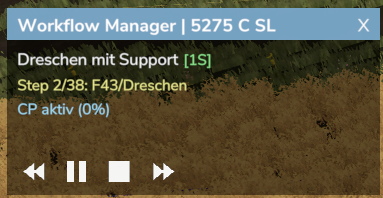
Support Vehicle HUD
The support vehicle's HUD shows which main step it is following and which sub-step it is currently executing:
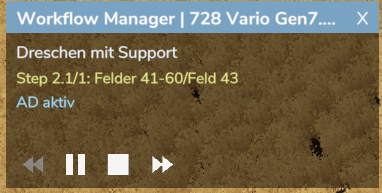
Step 2.1/2 means: main is on step 2, support is on sub-step 1 of 2.
Multiple Support Vehicles
You can start the same workflow as Support on multiple vehicles simultaneously. Each support vehicle has its own independent currentSupportStep counter and runs through the sub-steps independently.
Tips and Best Practices
- One workflow, two roles: There is only one workflow file — both vehicles start the same workflow but pick different roles
- Leave drive steps without support sub-steps if the support vehicle should just deliver to the silo or wait during transit
- Add a drive sub-step first in fieldwork support to pre-position the unloader near the field before it starts unloading
- Name the workflow clearly: e.g. "Wheat Harvest (2-vehicle)" so it's obvious it requires a support vehicle
- Test each vehicle independently: run the main without support first to verify all main steps work, then add the support