Step Types
Workflow Manager supports seven step types, selected from the Type dropdown in the Step Dialog:
| Type | Category | Needs a target? |
|---|---|---|
| AutoDrive | Navigation | Yes |
| Courseplay | Field work | Yes |
| Wait for Leader | Queue system marker | No |
| Unlock Follower | Queue system marker | No |
| Park | AutoDrive utility | No |
| Refuel | AutoDrive utility | No |
| Repair | AutoDrive utility | No |
The five types without a target have no Target/Action/Fill Type fields in the Step Dialog — just pick the type and click OK.
AutoDrive, Park, Refuel, and Repair need AutoDrive installed; without it they are hidden in the Step Dialog. Courseplay steps and the queue markers work with Courseplay alone.
AutoDrive Steps
AutoDrive handles all navigation and transport operations.
Actions
| Action | Targets needed | Description |
|---|---|---|
| Drive To | 1 | Simple point-to-point navigation |
| Unload Combine | 2 | Unload combine (follows combine, delivers grain) |
| Pickup and Deliver | 2 | Load at target, deliver to unload target |
| Deliver | 1 | Deliver current load to target |
| Load | 2 | Load at target, return to unload target |
Target Selection
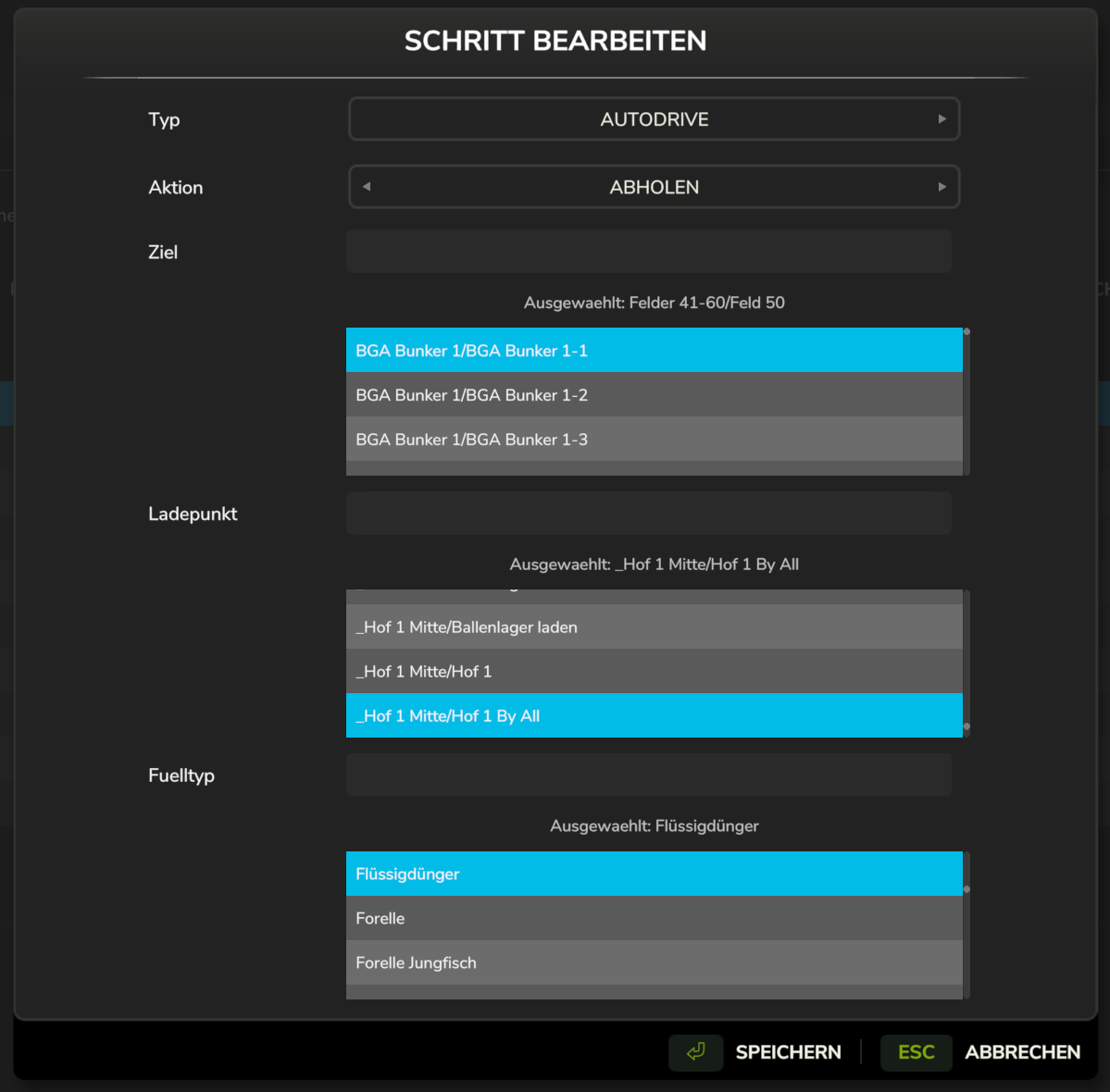
- Target: Primary destination (where to go first)
- Unload Target: Secondary destination (for multi-destination modes)
- Destinations come from your AutoDrive network markers
Fill Type Selection
For cargo operations (Pickup and Deliver, Load), you can select one or more fill types:
- Click an entry to select it (replaces any previous selection)
- Ctrl+Click an entry to toggle it on or off (add or remove from a multi-type selection)
- Selected entries are shown with a ✓ prefix in green
- The label below the list shows the selected types:
Selected: Wheat, Barley(up to 2 names), orSelected: 3 selectedfor larger selections - Limits what the vehicle will pick up — useful when multiple fill types are available at one location
- Leave empty to accept any fill type
Examples
Simple Navigation
Type:    AutoDrive
Target:  Field1_Entrance
Action:  Drive To
Grain Delivery
Type:          AutoDrive
Target:        Farm/Silo
Action:        Pickup and Deliver
Unload Target: Sell/Mill
Fill Types:    Wheat, Barley   (Ctrl+Click to select multiple)
Combine Unloader
Type:          AutoDrive
Target:        Field1_Harvest
Action:        Unload Combine
Unload Target: Farm/Silo
Courseplay Steps
Courseplay handles all field work operations.
Actions
| Action | Description |
|---|---|
| Field Work | Standard field operations (harvest, cultivate, seed, spray, etc.) |
| Bale Collect | Collect, load, and wrap bales |
Course Selection
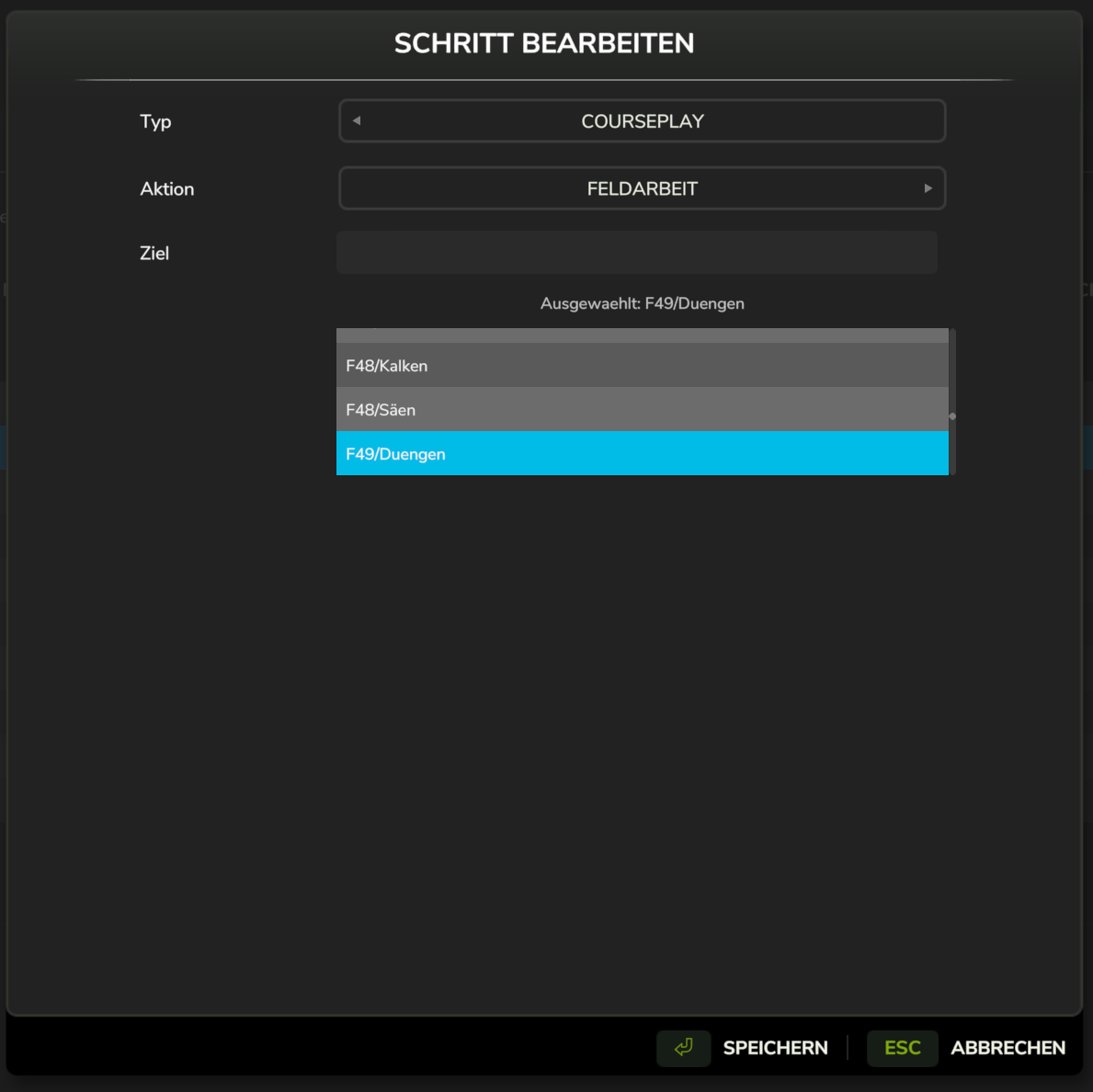
- Courses must be saved in Courseplay before they appear in the dropdown
- Courses are stored in:
modSettings/FS25_Courseplay/Courses/[MapId]/ - The dropdown shows all available courses for the current map, including courses inside folders — the list is built from Courseplay's root folder, not from whichever folder happens to be open in Courseplay's own GUI
Course names are stored as folder-qualified paths rather than bare names, e.g.
Singleplayer/F34/Kalken instead of just Kalken. This matters when you have the same course
name in more than one folder: a step asking for F34/Kalken must not load F09/Kalken.
:::note Courses saved by older versions
Workflows created before folder-qualified names were introduced stored shorter paths (e.g.
F34/Kalken). These still resolve — the lookup falls back to matching the end of the stored
path against the available courses. You don't need to recreate old workflows, but any step you
add now will store the full path.
:::
Seed Type
Field work steps can select the seed the sowing machine should use, so one workflow can sow different crops on different fields without you switching seed by hand between them.
- Choose a crop from the Seed Type dropdown, or leave it on None to keep whatever seed the machine currently has
- The seed is selected on every attached sowing machine that can sow it, right before Courseplay starts the field work
- If no sowing machine is attached, the setting is simply ignored — you can set it on a step and still run the workflow with a different vehicle
- If a sowing machine is attached but none of them can sow the chosen crop, the step fails and the workflow stops, so you never sow the wrong crop by accident
- When a contract has locked the seed to its own crop, that lock wins and the workflow continues with the contract's seed
Course Requirements
Before starting a workflow, ensure:
- The vehicle has the course loaded
- The vehicle is configured correctly for the course (implements attached)
- The course was created for the correct field
Examples
Wheat Harvest
Type:    Courseplay
Target:  Field1_Wheat_Harvest
Action:  Field Work
Bale Collection
Type:    Courseplay
Target:  Meadow_Baling_Route
Action:  Bale Collect
AutoDrive Utility Steps
Park, Refuel, and Repair are AutoDrive-driven steps with no configurable target — AutoDrive resolves the destination itself each time the step runs.
| Type | Destination | Behavior when nothing is needed |
|---|---|---|
| Park | The vehicle's own AutoDrive park position, or (if attached) its rear implement's park position | No park position configured → step fails |
| Refuel | The nearest AutoDrive refuel station matching a fill type the vehicle needs | No refuel needed, or no matching station reachable → step completes instantly (not a failure) |
| Repair | The nearest AutoDrive-reachable repair/workshop trigger | No repair station reachable → step fails |
Refuel's "nothing to do" case is treated as success rather than failure because AutoDrive doesn't distinguish "already fueled" from "no matching station nearby" — either way there's nothing more for the step to do, so the workflow moves on. Park and Repair fail instead, since an unreachable destination there usually means something needs fixing (no park spot configured, no workshop marker placed).
Add these like any other step — select the type in the Step Dialog and click OK. They're most useful inserted between AutoDrive/Courseplay steps in a long-running workflow, so a vehicle tops up fuel or gets patched up automatically instead of stalling out mid-route.
Queue Sync Markers
Wait for Leader and Unlock Follower are marker steps used by the queue system to synchronize two vehicles running the same or different workflows. They run no AD/CP job — they're pure checkpoints:
- Wait for Leader: added to a follower's workflow. The follower pauses here until the leader has reached its matching Unlock Follower step.
- Unlock Follower: added to a leader's workflow. Reaching this step releases any followers waiting on the matching Wait for Leader checkpoint.
Synchronization is opt-in — a workflow with no marker steps never waits on a leader, regardless of whether a leader was selected at start. See Queue System for the full pairing rules and setup examples.
Step Transitions
AutoDrive to Courseplay
When an AutoDrive step finishes and the next step is Courseplay:
- The Courseplay course is pre-loaded onto the vehicle
- AutoDrive hands off to Courseplay automatically
- Courseplay starts field work without any manual input
Courseplay to AutoDrive
When a Courseplay step finishes and the next step is AutoDrive:
- Workflow Manager detects that Courseplay has stopped
- The next AutoDrive route starts automatically
Internal Handoffs
During Courseplay field work, AutoDrive may be triggered internally (e.g., a harvester calling an unloader via AutoDrive). The mod handles this automatically - it waits for both AutoDrive and Courseplay to finish before moving to the next step.
Step Order Considerations
Start Position
- The first step should account for where the vehicle currently is
- Use an AutoDrive Drive To step to position the vehicle if needed
End Position
- Consider where the vehicle will be after the last step
- You may want to add a final AutoDrive Drive To step to return home
Course Prerequisites
- Ensure implements are attached before starting
- For multi-tool workflows, consider implement changes between steps
Troubleshooting Steps
AutoDrive Step Won't Start
- Check that AutoDrive is installed and enabled — a workflow containing AutoDrive steps won't start without it
- Check that the destination exists in AutoDrive
- Verify the vehicle has the AutoDrive spec
- Ensure no other AD/CP job is running
Courseplay Step Won't Start
- Verify the course exists and is for the correct map
- Check that required implements are attached
- Ensure the vehicle supports the course type
- If the step sets a Seed Type, check that the attached sowing machine can actually sow that crop — the workflow stops with an error if it cannot
Park / Repair Step Fails Immediately
- Park needs a park position configured on the vehicle or an attached implement in AutoDrive
- Repair needs an AutoDrive-reachable repair/workshop marker on the map
- Both resolve their destination fresh each run — a marker deleted since the workflow was created will cause the step to fail
Wait for Leader Step Never Unblocks
- Confirm a leader was selected when the follower's workflow started (check the HUD status line)
- Confirm the leader's workflow actually has a matching Unlock Follower step — without one, the follower waits for the leader to finish its entire workflow
- See Queue System for the ordinal pairing rules
See Troubleshooting for more solutions.